How do I manage trusted devices?
To help keep your getSoapy account secure, go to Tools > Settings > My Account > Security or search for Security and scroll down to Security Devices to set up Multi-Factor Authentication (MFA, also called 2FA).
When MFA is enabled, you'll need to enter a one-time verification code as well as your password when you log in on a new device. This makes it much harder for someone else to access your account, even if they get hold of your password. getSoapy MFA uses your authenticator app (or a password manager that generates codes). We don't send codes by SMS or email, because app-based codes are the most secure option.
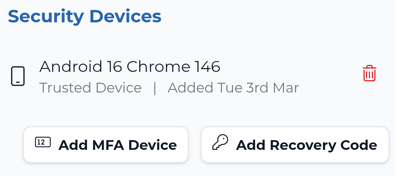
Add a trusted device
To add a new MFA device to your getSoapy account, click Add MFA Device and follow the steps in the app.
Delete a trusted device
Click the menu icon next to the device and select Delete to remove it from your trusted devices. If you try to log in again from the deleted device, you'll need to enter your password and a one-time verification code.
Add a recovery code
Click Add Recovery Code to generate a code you can use if you lose access to your MFA device(s). Make sure you copy or make a note of the code and keep it secure before adding it.