Using the multi select tool
Need to update or edit multiple records? Several pages such as the Customers, Quotes, and Jobs pages have a multi select option so you can carry out bulk updates in a flash.
Some actions are limited when updating multiple records at the same time. For instance, you won't be able to schedule a job for a particular time or make an invoice adjustment when marking multiple jobs as complete.
On the Jobs page, you can edit, schedule, unschedule, assign a worker to, mark as done, skip, or add to a round all the selected jobs at once, or plan a price change for them with Calculate price change (see how to plan a price change).
Using the long press option
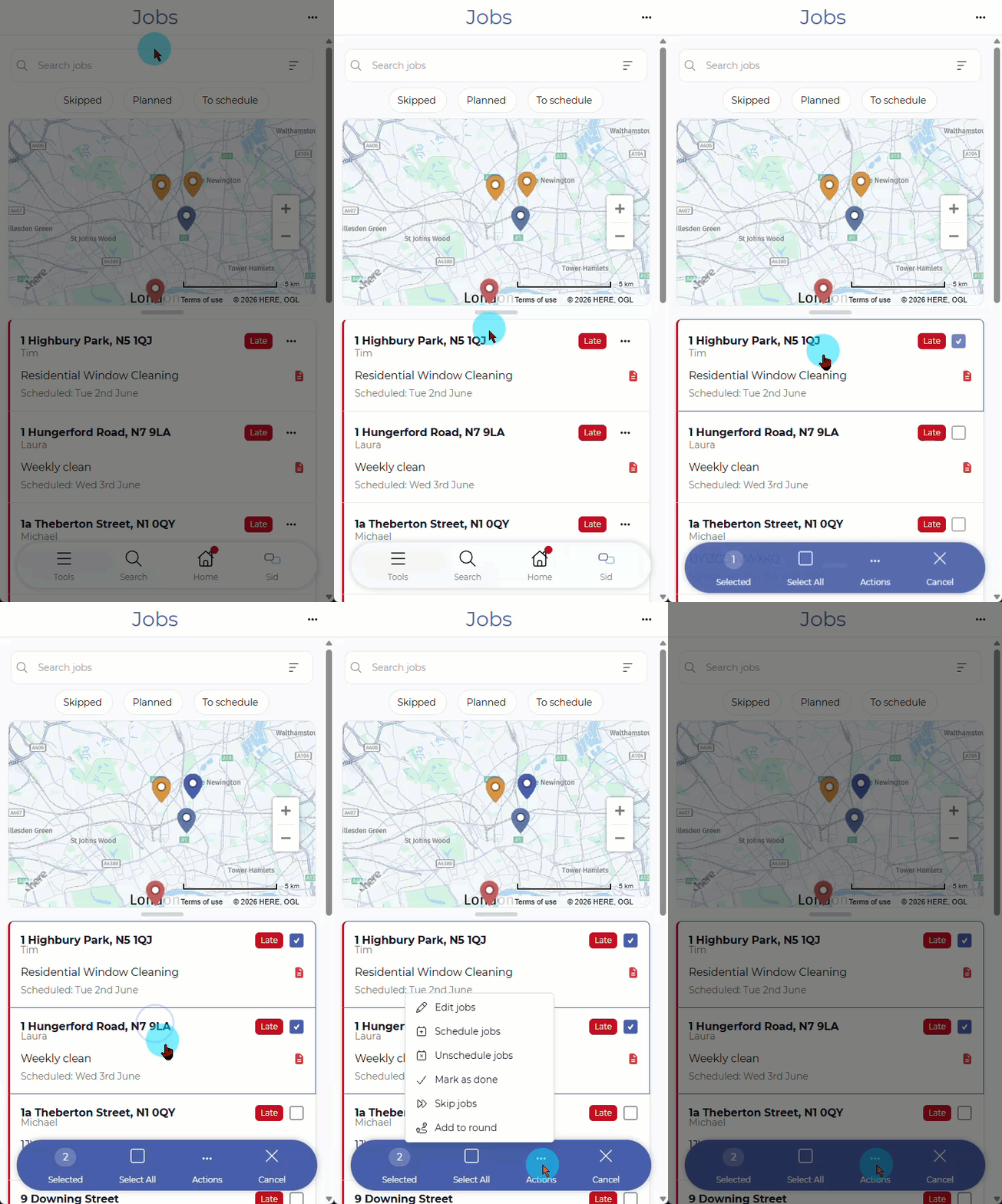
Tap and hold on the first entry you want to select.
The multi select mode will be enabled and individual checkboxes will appear next to each entry. Tap other entries to include them in the selection, or use the
Select Allcheckbox at the bottom of the page to select all of the entries currently displayed.
Use the saved search options or filter at the top of the page to make this step easier. Using the Select All checkbox will only select the filtered results.
- Once you've selected the entries you want to edit, click on the
Actionsicon at the bottom of the screen and select your action.
Using the menu
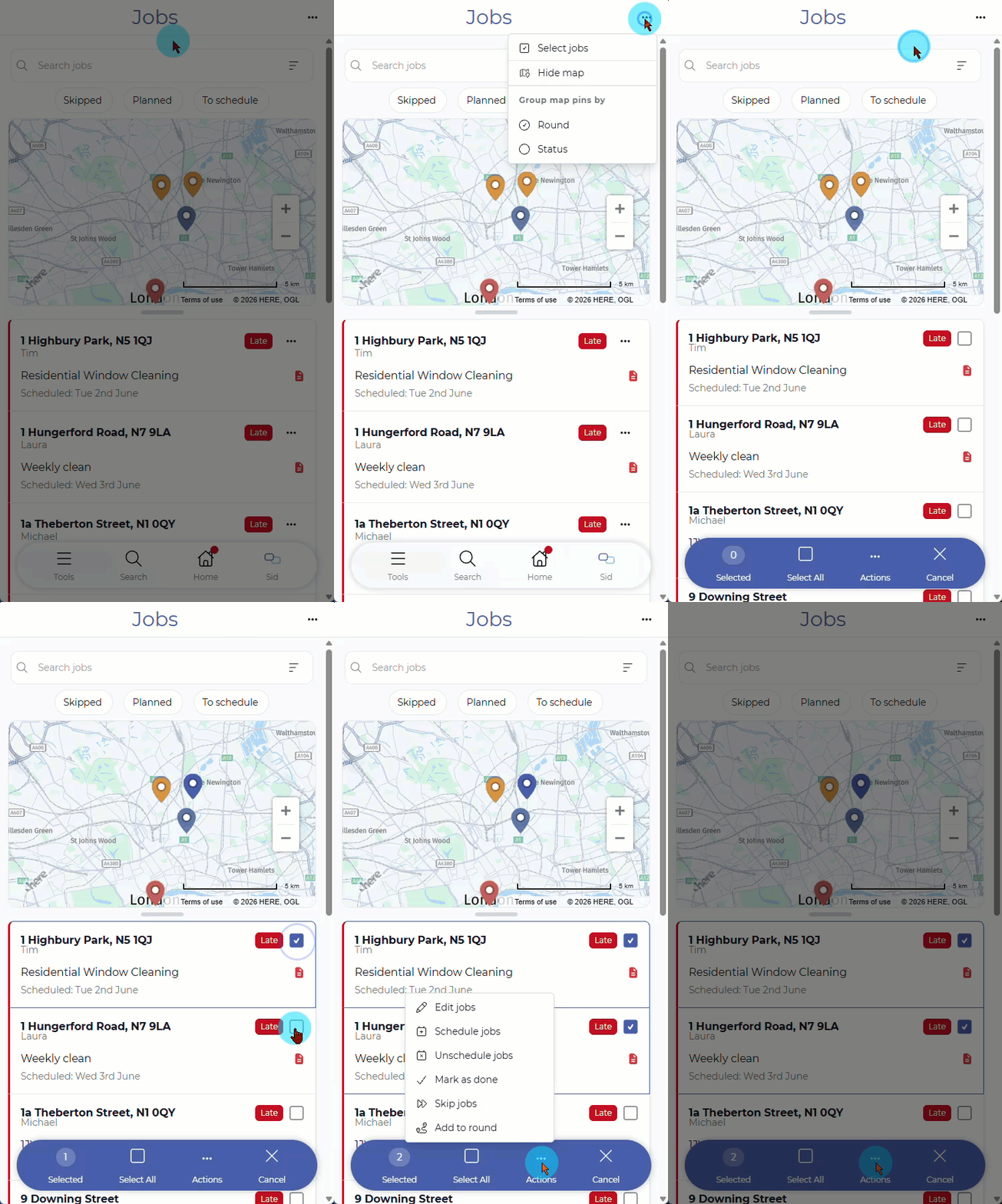
Click on the menu icon in the top-right corner and select
Select jobs(or the equivalent option depending on the page you're on).The multi select mode will be enabled and individual checkboxes will appear next to each entry. Tap other entries to include them in the selection, or use the
Select Allcheckbox at the bottom of the page to select all of the entries currently displayed.
Use the saved search options or filter at the top of the page to make this step easier. Using the Select All checkbox will only select the filtered results.
- Once you've selected the entries you want to edit, click on the
Actionsicon at the bottom of the screen and select your action.
Exit multi select
To exit multi selection, tap the Cancel icon at the bottom of the screen.