How do I add a payment to a customer/job?
If you take payment from a customer outside of getSoapy (by cash, cheque, bank transfer, card, or any other way), you'll need to record it to keep your invoices and customer balances accurate. There are two ways of doing this in getSoapy:
You can also match bank transfers to a customer using the bank reconciliation feature.
Add an external payment to a job
- Click the menu icon next to the job from anywhere in the app (Home page, Work view, Jobs page, Customer jobs tab) and select
Mark as done.
See How do I view and manage jobs? for help finding the job you're looking for.
Click
Show more options.Toggle the
Add external paymentoption.
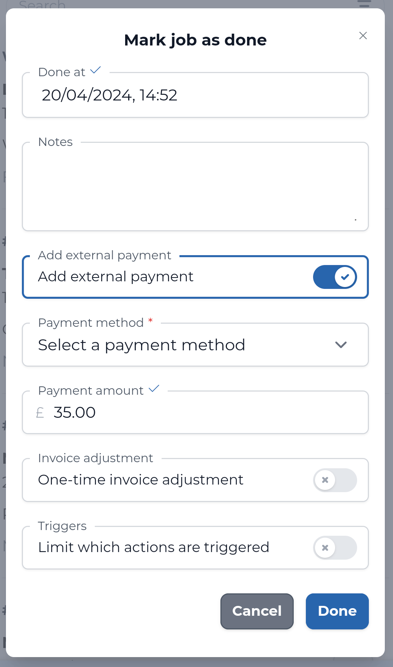
Select the
Payment methodfrom the drop-down menu.The
Payment amountwill be auto-filled with the job cost. If you received a different amount, update the amount here.If part of the payment is a tip, enter the amount in the
Tipfield.Click
Doneto mark the job as done and update the customer's balance.
To find out what happens when a job is marked as done, see What happens when I mark a job as done?
Add an external payment to a customer
Search for the customer or go to
Tools>Manage>Customersand select the customer.Click the menu icon in the top-right corner and select
Add external payment.Select the
Payment methodfrom the drop-down menu.
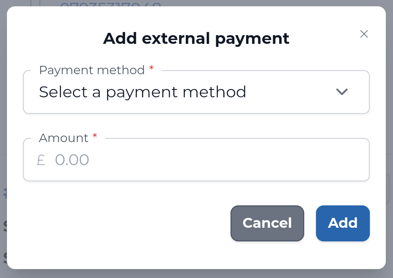
The
Received atfield will be auto-filled with the date and time. Tap to change the date and time the payment was received.Enter the
Amountreceived.
The Amount can be different to the outstanding balance. The external payment is added to the customer's balance and is applied to the oldest outstanding invoices first.
If part of the payment is a tip, enter the amount in the
Tipfield.Click
Addto add the external payment to the customer's balance.